


Check Into Class!
Please remember to only check into the classes you're assigned to.
- Access online
Log in to the SEAtS Portal - Downloading the App:
Please see the below links for both Apple and Android download. - Experiencing Issues?
If you're having trouble with the app, refer to our SEAtS App Quick Fixes document and follow the steps provided. - Need Answers?
See our frequently asked questions below - Further Assistance:
If you need further assistance, please contact the team with your B number, campus, mobile device, and the details of your query.
Downloading SEAtS
- Before downloading the latest version of SEAtS, ensure you have completed your online course enrolment - this applies to both new and returning students.
- Ensure you have set up access to the university Wi-Fi and Multi-Factor Authentication (MFA) enabled on your phone.
- Check that your default browser is set to Safari for iOS devices or Chrome for Android devices.
Please allow 48 hours after completing your enrolment to gain access to the SEAtS system.
If you have newly enrolled, this is why you cannot access the system. Please try again after this time.
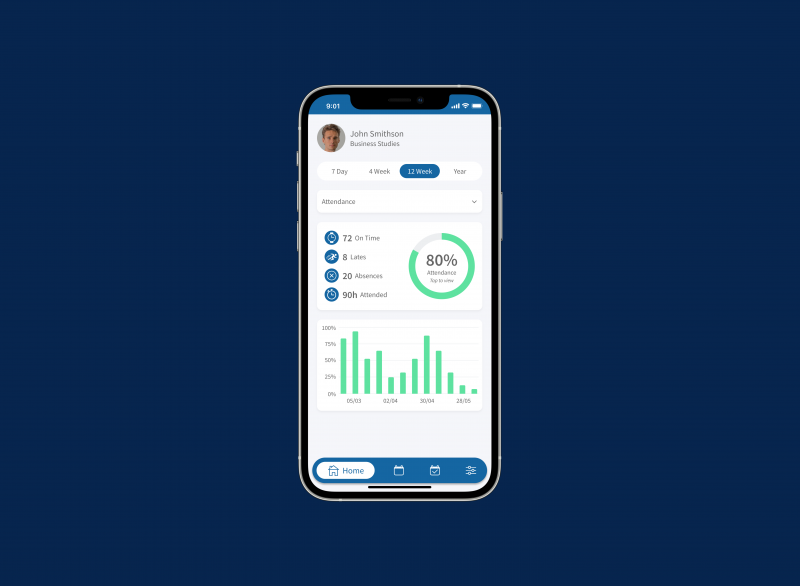
Check In with Your Smartphone: A Quick Guide
- If notifications are on, you’ll get an alert before class.
- When you arrive, tap the alert or open the app and go to "Calendar."
- Tap "Check-In" under your class and select "Bluetooth."
- The app will search for Bluetooth beacons. If Bluetooth is off, turn it on and repeat the steps.
- Wait for the app to find the beacon. Once found, you'll see a "Checked In" message, and the event will show as "Attended.
For detailed instructions or other check-in options, see the user guide below.

Supporting Documentation
Attendance
Using SEAtS

If you're unable to log into the app, please download the SEAtS App Quick Fixes document and follow the instructions to set up your phone properly.
If the issue persists, please report it to us by filling out the Academic Timetabling Query form with a description of the issue along with your student B number the campus you are enrolled on and the device make that you are using.
If you are studying at an Ulster University Branch Campus (Birmingham, London for Manchester) you will not use SEAtS to track your attendance. For further information please visit Ulster University Branch Campus Student Advice and Support Centre.
There may be a few reasons why you might have trouble checking into classes on SEAtS.
Check that the session you are attempting to check-in is appearing in your SEAtS app. If not please report it to us by filling out the Academic Timetabling Query form
Are you in the same room that is listed on the session in SEAtS? If not, you will not be able to register your attendance. Notify your lecturer that you are in attendance.
To check in using a beacon you must be physically present in the room scheduled on SEAtS and have Bluetooth enabled on your device.
- Click on the “Current Events” button. Note: The Yellow bubble indicates an event is available to check in based on your timetable.
- Click the "Check In" button, followed by "Bluetooth".
- Your device will scan for the available Bluetooth beacon. If Bluetooth has been disabled, a warning will be displayed to inform you to enable within your device settings. Cancel, enable in settings and repeat 1 and 2.
- Searching screen is displayed.
- When beacon is found, you will receive a “Checked in Successfully” update along with notification.
- Event updated to display Attended.
Please note that iPhone and iOS users may encounter issues with Bluetooth connectivity. Please visit the manufacturers website for their Bluetooth troubleshooting steps.
In sessions where a QR code is displayed:
- Open the SEAtS app
- Click the session you with to check in for
- Click “Check-in” Select “QR Code”
- Use your smartphone to scan the code
SEAtS absence requests should only be submitted by student visa holders.
If you do not hold a student visa and need to be absent from class you must contact your Lecturer/Course Director directly so that they may add an excusal on your SEAtS profile.
If you hold a student visa and need to be absent from class, follow the steps below to request on absence on SEAtS. Make sure to submit your absence request by Friday of the week of your illness.
- Log in to the SEAtS app.
- Tap on “Requests.”
- Press the “+” symbol to add a new absence request.
- Select “Absence.”
- Choose the dates for your absence.
- Pick the type of absence from the drop-down menu.
- Provide a description of your absence in the “Comment” box.
- Attach any relevant supporting documentation.
- Tap “Send” to submit your request.
Your request will be sent to the UKVI Student Monitoring team, and you’ll receive an email notification confirming receipt and whether your request has been approved or denied.
Please note if you submit an absence request via SEAtS and you are not a student visa holder you will receive an automatic rejection of your request. Please inform your Lecturer/Course Director of your absence.
We encourage students to check in using their smartphones and Bluetooth, as this is the simplest method.
However, we understand that there may be situations where this isn't possible, and you may prefer to check in using a laptop or tablet.
To check in via a laptop or tablet, please follow these steps:
- Ask an academic for a check-in code.
- Visit the SEAts webpage.
- Click on the circle icon with your initials (next to your name in the top-right corner) and select “My Profile”
- Click "Calendar” and select the activity you wish to check into.
- Within the teaching activity, you will see a “Check In” icon where you can input the code provided by the academic, and you will be checked in.
Otherwise, please approach the lecturer responsible for your session and ask them to manually mark your attendance.
This is a known issue with SEAtS that we are currently investigating. It is confusing but it should not impact your attendance or how the system works.
SEAtS is not available for students studying in London, Birmingham, or Manchester. For further information about student supports please visit the Ulster QA website. If you have any concerns, please contact;
To report an absence: please e-mail QAHE.attendance@qa.com
Website:
The QAHE Compliance Team monitors student attendance and will send alerts when a certain number of absences is reached. If you have any questions, please get in touch with the QAHE attendance team at ulstercompliance@qa.com or call 020 3883 5879 (Monday to Friday, 9am - 5pm).
SEAtS Timetabling Data
Due to how SEAtS is integrated with other university systems it shows scheduled sessions five days into the future.
You should use SEAtS to record your attendance and Publish to view your full timetable.
For more information about Publish please visit our Timetabling web pages.
If you have just enrolled wait 48 hours to see if sessions start to appear on your SEAtS calendar.
If your calendar in the app continues to show "no events" or if your scheduled classes aren’t appearing on SEAtS, please fill out the Academic Timetabling Query form with your B number, campus and the name(s) of your missing modules.
We’ll investigate it as soon as possible. In the meantime, please notify your lecturer of your presence in the session.
Please be assured that where sessions aren’t showing in SEAtS, you will not be marked as absent for those sessions.
If SEAtS is showing you in the incorrect group or if you wish to change groups please contact your school or faculty administrative office to get this updated.
Please note that it takes 24 hours for edits to timetabling data to be reflected on SEAtS.
Proof of Attendance & Student Finance
If you require a letter to confirm you are a student at Ulster University for your bank, council tax or for social security benefits, you can download this information from your student portal once you are a registered student.
Download your Attendance letter
- Log into your Portal
- Select Banner
- Select the Student Records, Fees and Financial Aid menu
- Select Registration
- Select Confirmation of Attendance Letter
If you have difficulties
If you have any difficulties downloading or scanning the form, just contact your campus Registry Office and we can print the form on your behalf.
We currently do not share attendance data with Student Finance. For attendance confirmation, please contact studentloans@ulster.ac.uk directly.
SEAtS data is currently not being made available for attendance monitoring in relation to scholarships.
Student Forms
If you need to take a break from attending classes, please follow the provided guidelines and submit the necessary forms.
This will help maintain your academic record and ensure you fully understand your tuition fee obligations and the potential impact of non-attendance on your student finance.

Click the button below to find forms regarding:
Course
- Leave of Absence Form
- Notification of Absence NA1 Form
- Withdrawal Form
- Change of Address Form
- Change of Name Form
- Extenuating Circumstances EC1 Form
- Course Transfer Form
- Module Change Form
Fees:=
- Direct Debit Form
- Tuition Fee Refund Application Form
- Staff Tuition Fee Exemption Form
Digital Claimant Portal
- Prior Approval Form
- Demonstrator Claim Form
- Student Wages Claim Form
- Reimbursed Expenses Form
- Subsidiary Payroll Form
Exams
- SA1 / SA2 Forms
- Deferment of Assessment Form


Contact
If you have any further queries, please use the Academic Timetabling Query form.