


Page content
Booking a Meeting in a Videoconferencing Room
- Open Outlook, go to your calendar and create a new event for the time you wish to book the meeting in the Videoconference room.
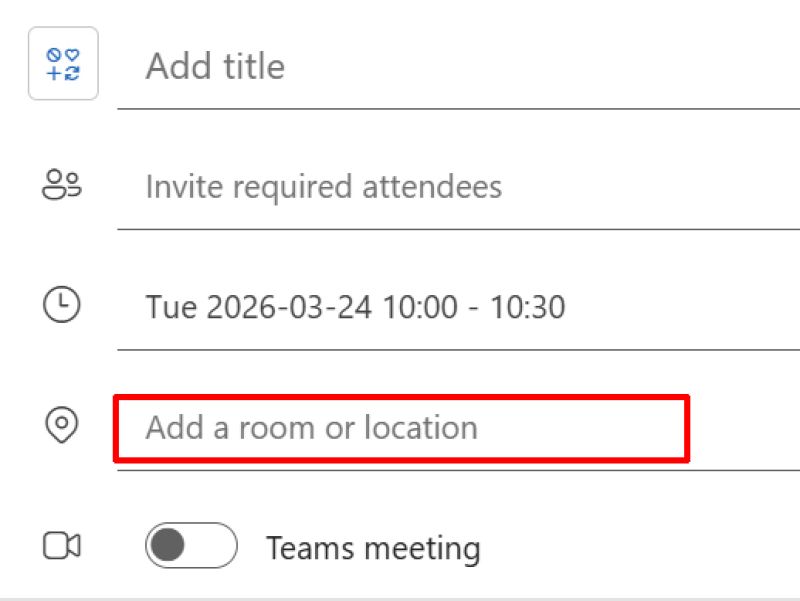
- Type the name of the Videoconferencing room into the location section in the new event screen (1st image below)
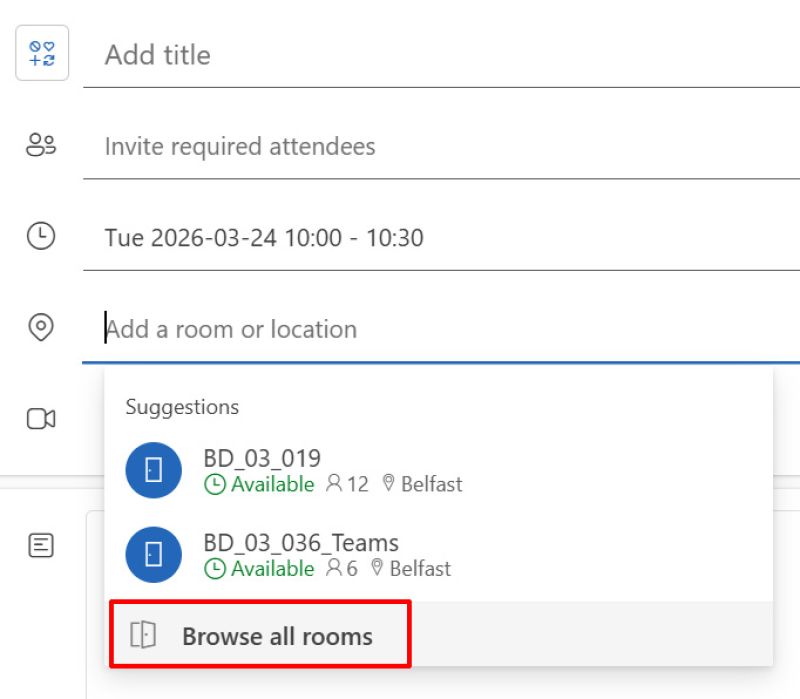
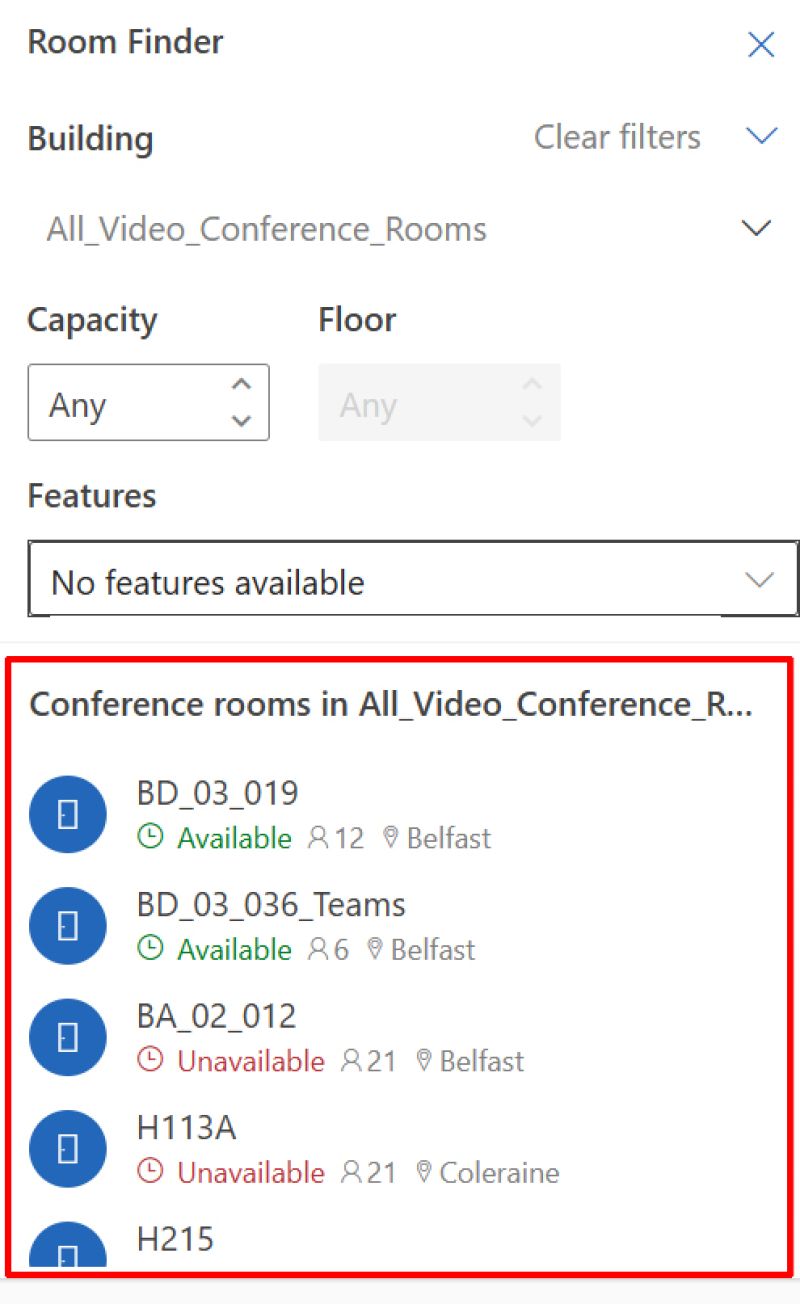
- If you don't know the available rooms, you can click on the location section, and select "Browse all rooms" from the menu which appears (2nd image below). This will show the Outlook Room Finder, which shows the list of rooms, their availability for your chosen date/time, the capacity, and campus. You can also use filters for campus etc. (3rd Image below)
- To schedule a Teams meeting that uses one or more videoconferencing or immersive rooms, you can add multiple rooms to the location section using the method above for each room.
- You’ll receive an email confirming the room reservation - or a decline notification if it’s already booked, which will indicate who holds the booking.
Check Room Availability
These rooms can be added to your Outlook Calendar just like a staff account. By opening Add Calendar and selecting Room List, you can view the availability of the videoconferencing and immersive suites throughout the year.
Using the Rooms During a meeting
Meetings in these spaces use both:
- Control Tablets on the desk
- Participants’ own devices
Desk top Control Tablet Functions
- You can share emojis with the group via the Face & Waving Hand icon on the tablet’s menu.
- Meeting chat can be shown or hidden on the large display screens using the Quartered Square icon.
Using Your Personal Device
- Connect your device using the HDMI cable beside the tablet to share your screen with everyone in the room and remote participants.
- Stop sharing by disconnecting HDMI or selecting the Cross‑in‑a‑Box icon on the tablet.
- To participate in meeting chat, individuals must join the meeting on their own device and be added as participants.
- Meeting recording, including transcripts, must be started from personal devices. Transcripts cannot identify individuals in the room - everything spoken locally is attributed to the room.