

Page content

Control System Quick Start Guide

Wake the Touchscreen!

If the touch panel is black, tap to wake up

Touch the screen to begin

Ulster University start screen displaying the Ulster University logo and the text “TOUCH TO BEGIN”.

System Start-Up

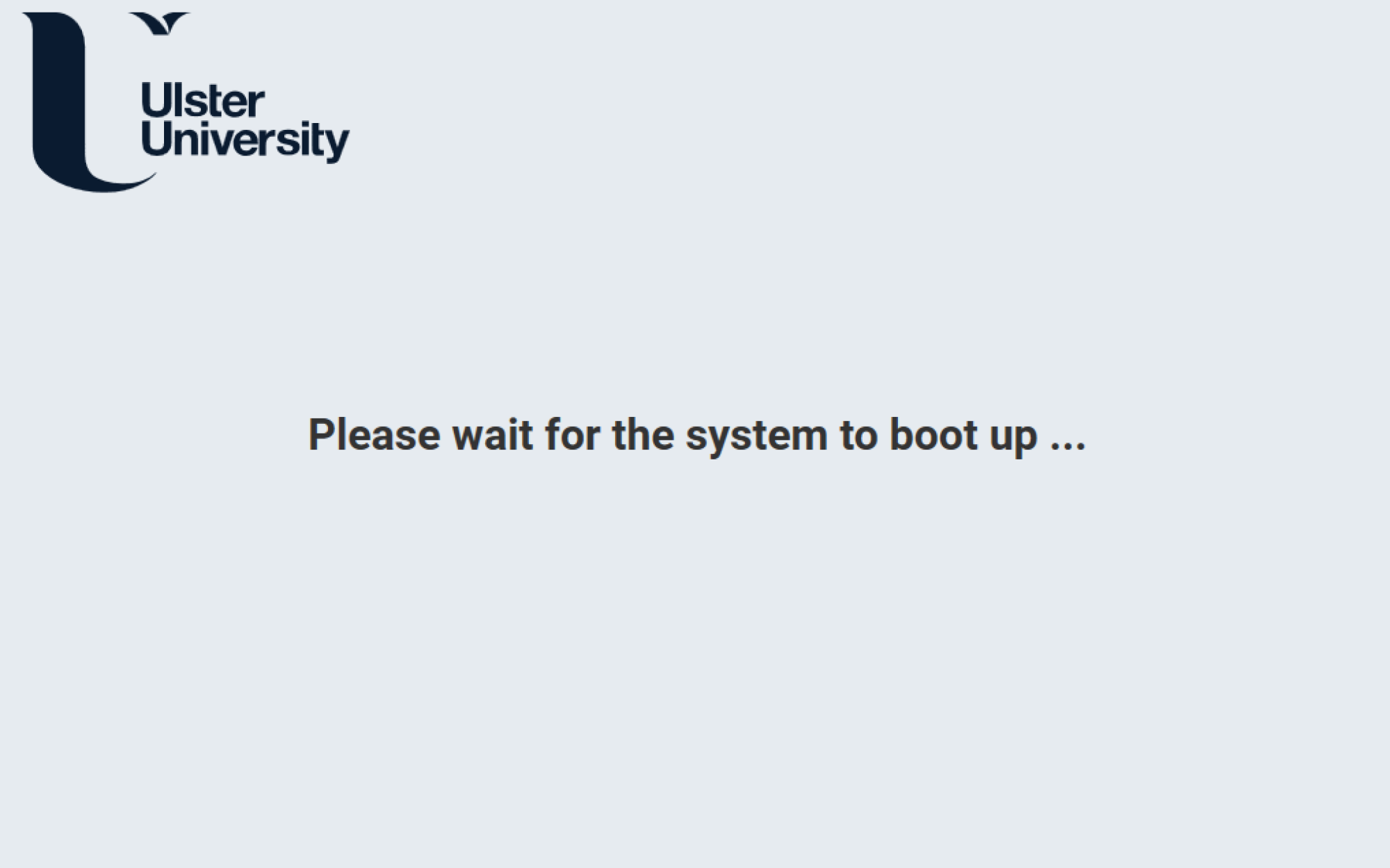
Ulster University loading screen displaying the Ulster University logo and the message “Please wait for the system to boot up...”

Wait while the room system starts up.

Select a Source
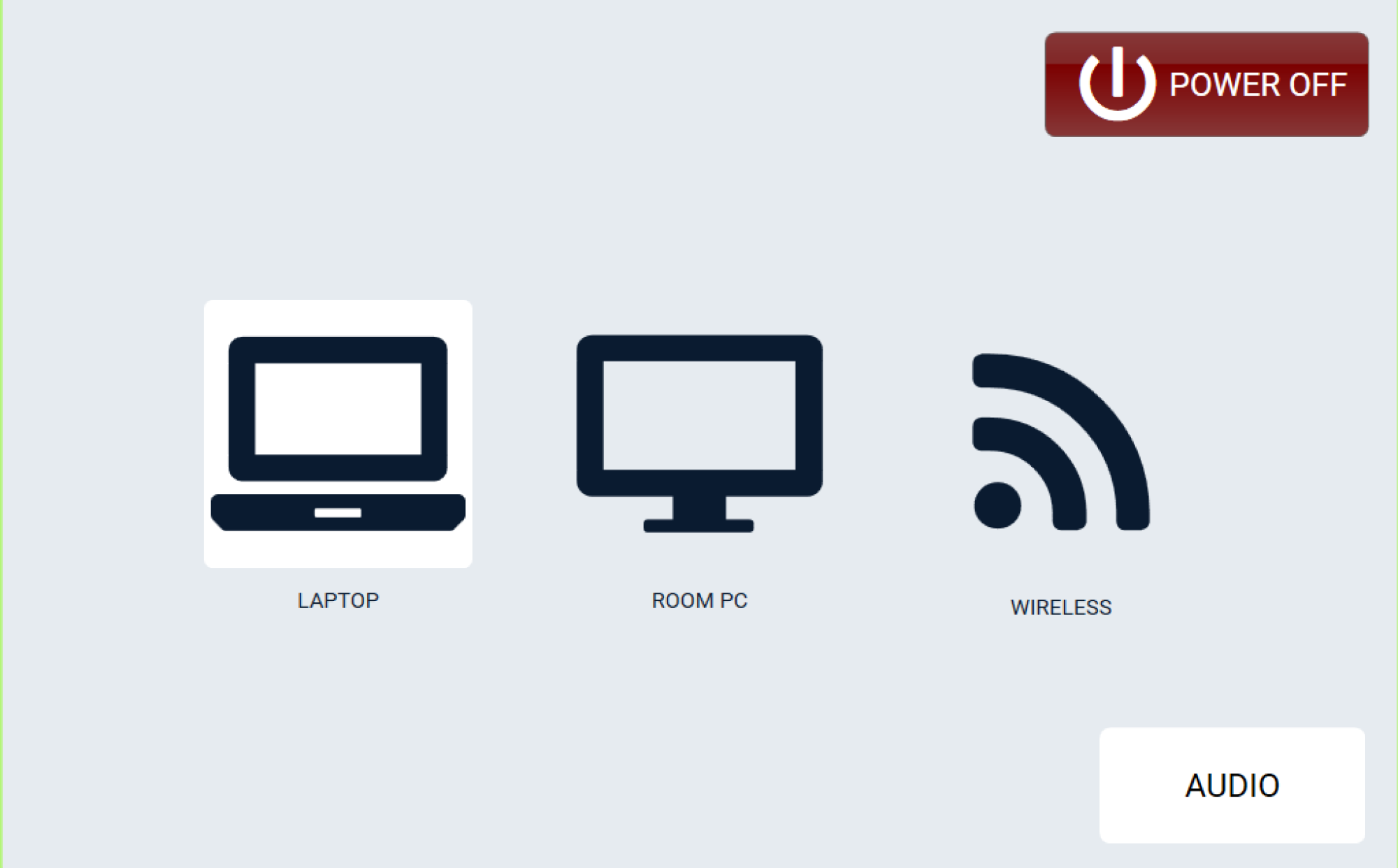
Source selection screen showing options for Laptop, Room PC, and Wireless connections, with a Power Off button in the top-right corner and an Audio button in the bottom-right corner.

Choose Laptop, Room PC or Wireless.

Audio Controls (Optional)

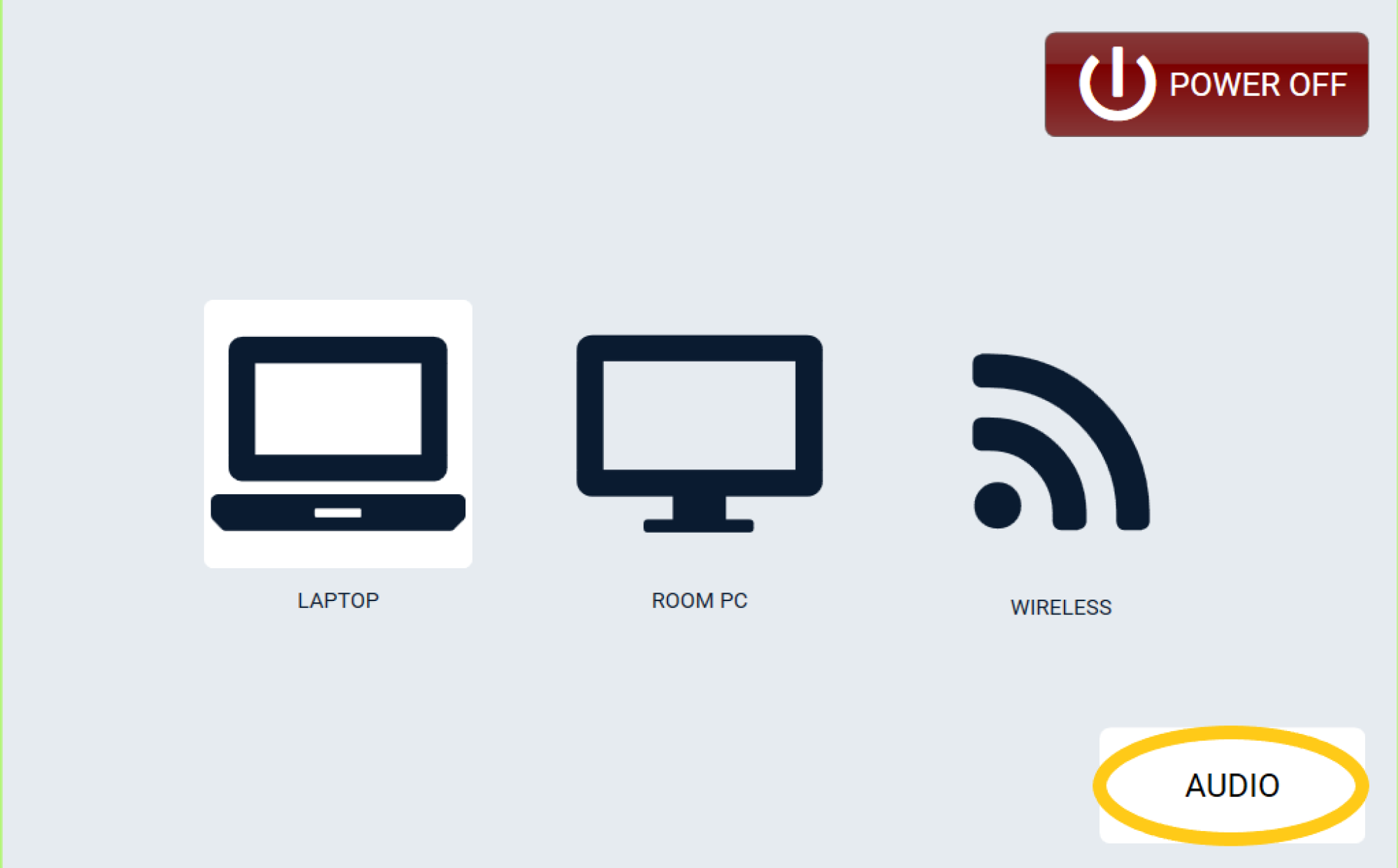
Source selection screen with options for Laptop, Room PC, and Wireless connections. An Audio button in the bottom-right corner is highlighted with a yellow outline, indicating it is selected. A Power Off button appears in the top-right corner.

Audio levels are pre-set and should only be adjusted if required.

Audio Controls
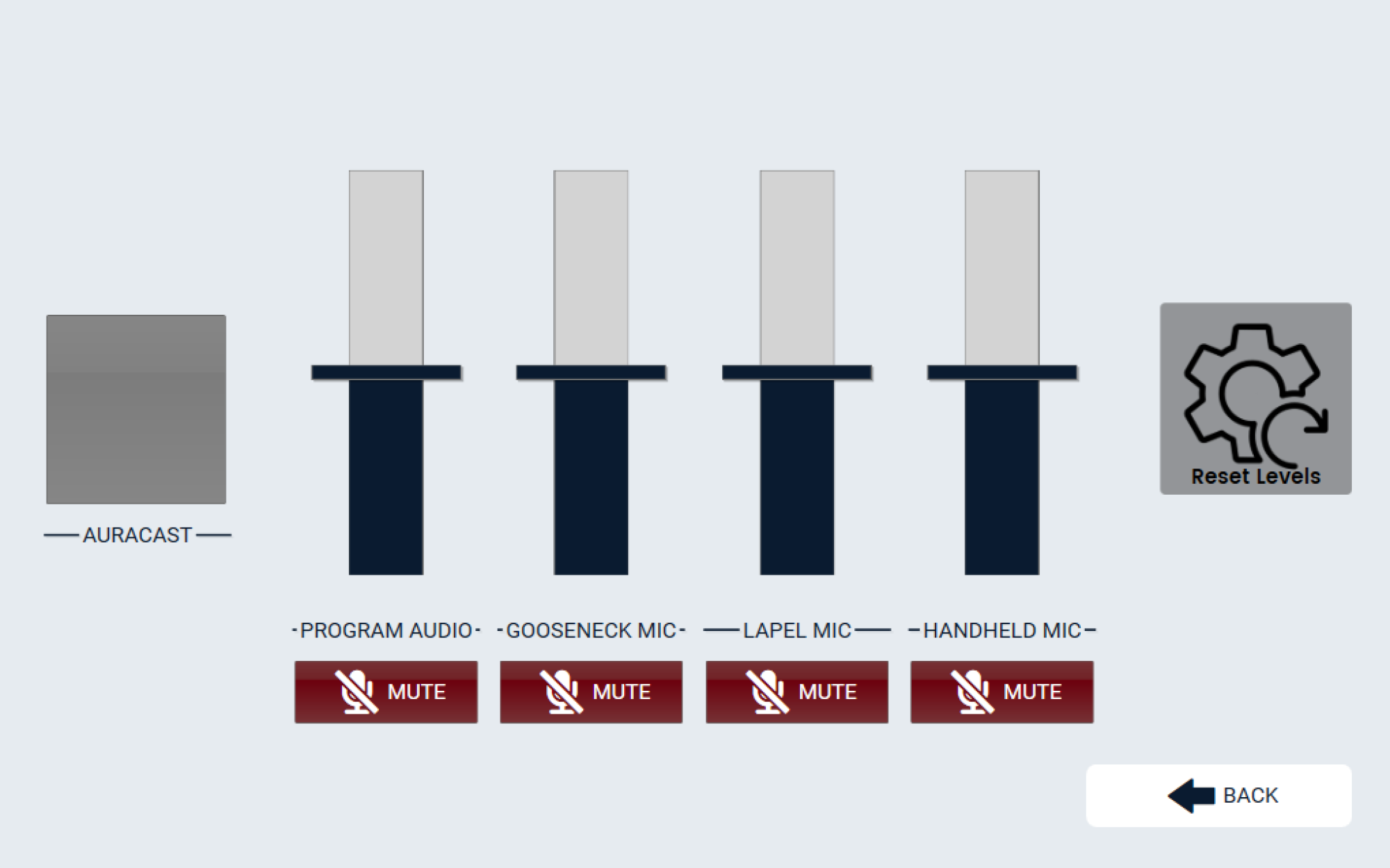
Audio control screen showing volume level sliders for Auracast, Program Audio, Gooseneck Microphone, Lapel Microphone, and Handheld Microphone. Each audio source has a mute button below it. A Reset Levels button is displayed on the right, and a Back button is located in the bottom-right corner.

Power Off

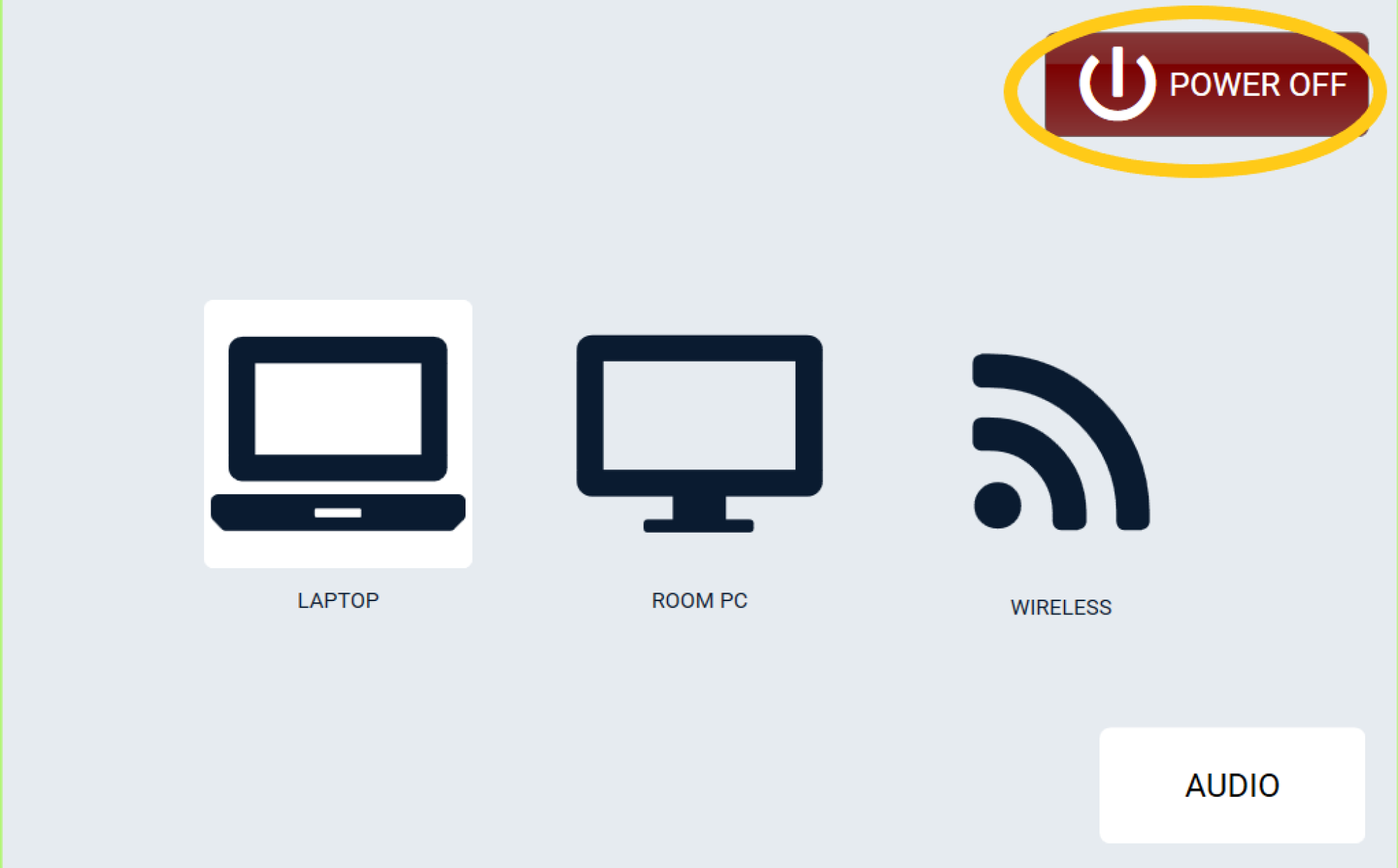
Source selection screen showing Laptop, Room PC, and Wireless connection options. The Power Off button in the top-right corner is highlighted with a yellow outline, indicating it is selected. An Audio button is available in the bottom-right corner.

Select Power Off when finished.

Confirm Shutdown
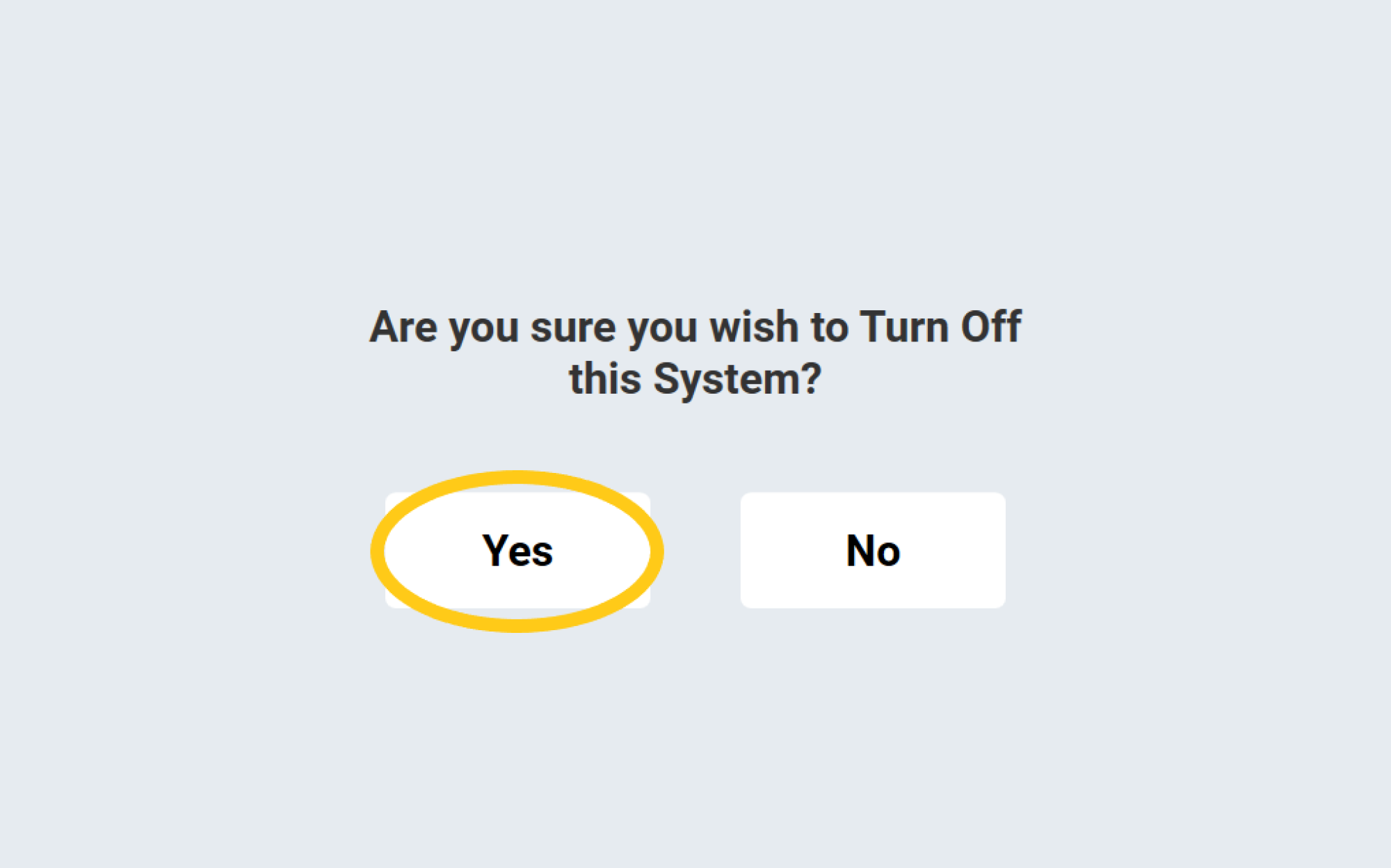
Confirmation screen asking “Are you sure you wish to Turn Off this System?” with two buttons labelled “Yes” and “No”. The “Yes” button is highlighted with a yellow outline.

Shutdown Complete

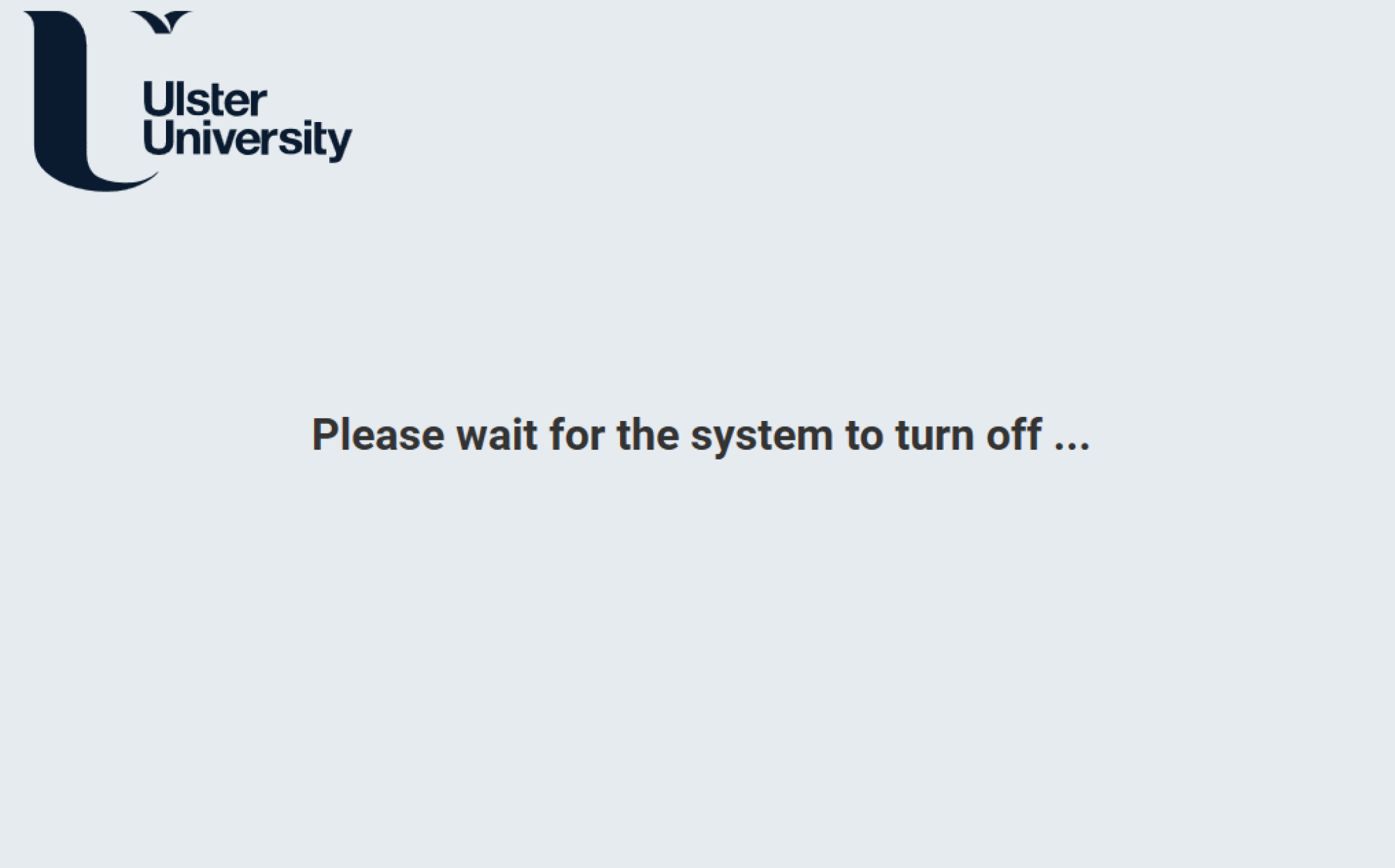
Ulster University shutdown screen displaying the Ulster University logo and the message “Please wait for the system to turn off...”, indicating that the room system is powering down.

The touch panel should return to the “Touch to begin” screen