Elsewhere on Ulster
A step by step guide to creating support tickets using the Estates Helpdesk App.
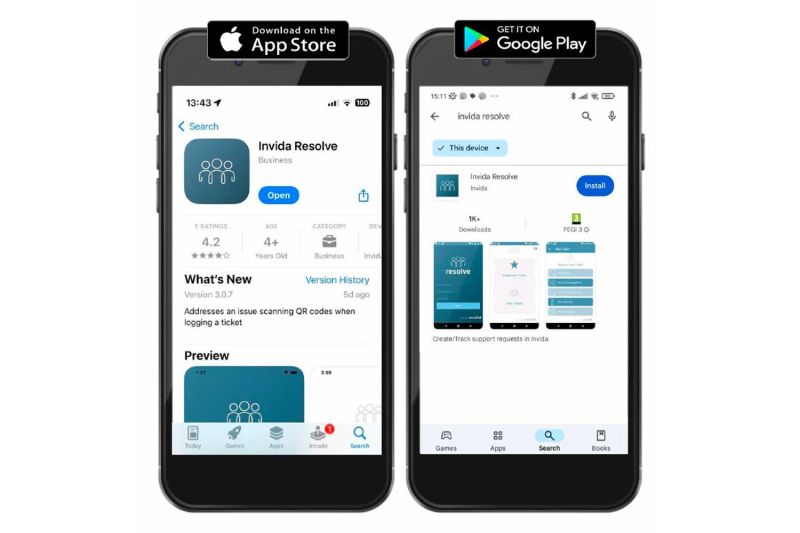
Search for and install the free Invida Resolve app from your device’s app store.
(Make sure you choose Invida Resolve, not Invida Mobile.)
Once installed, the app icon will appear on your device.
If you are unable to use the Resolve app, tickets can be logged via the University Portal.
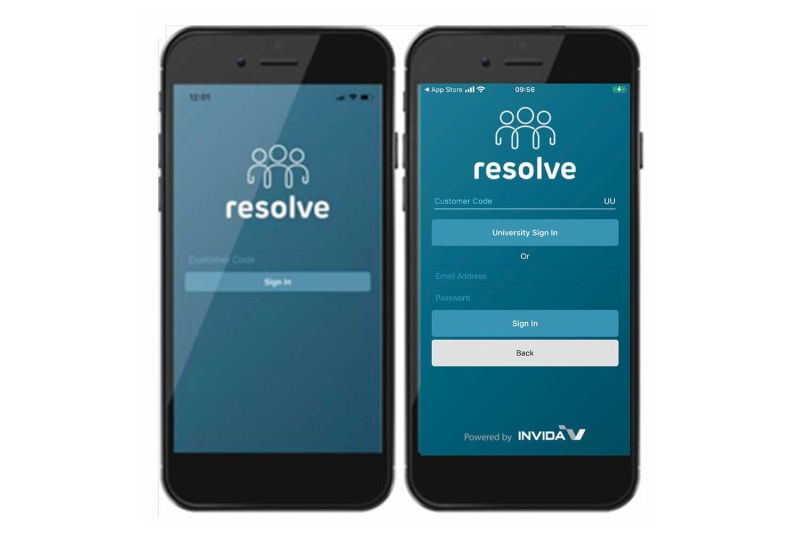
Enter the Customer Code: UU
Click University Sign In and this redirects you to UU Sign In. Enter your email and password
When logging in for the first time, you will be asked to set a 4-digit pin. This is used for quick access in future.
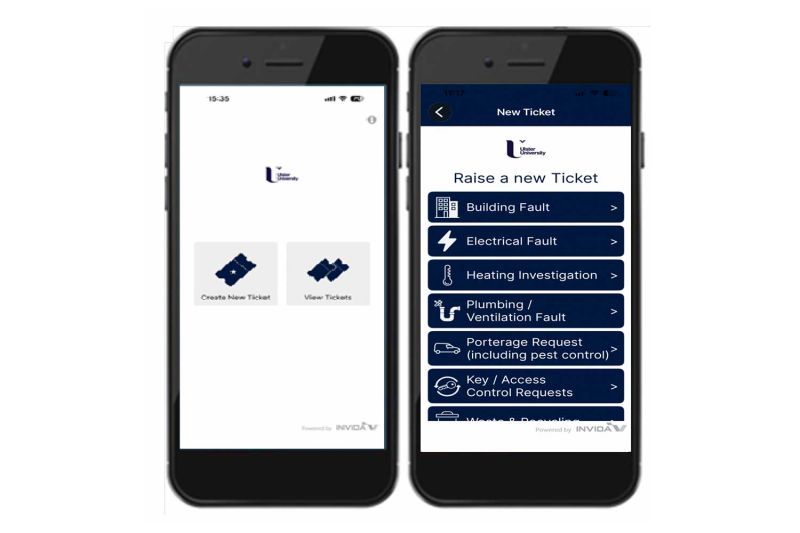
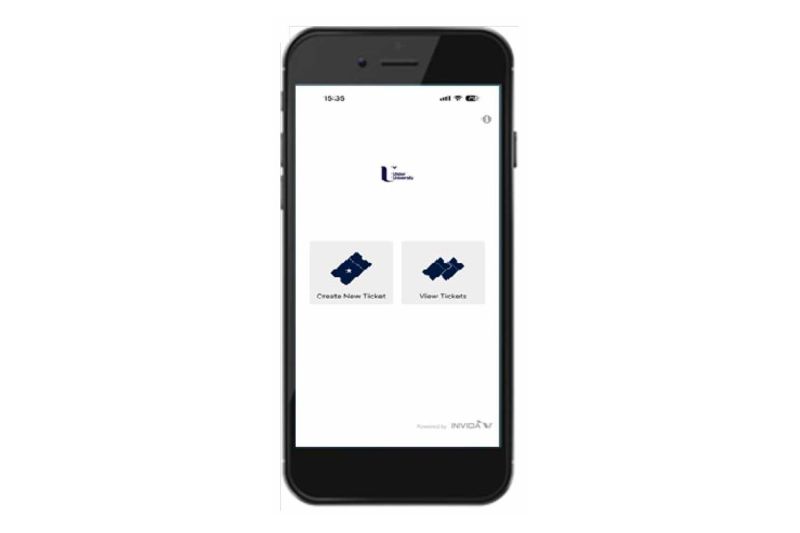
Select Create New Ticket to raise a new service ticket.
Then use the classification menus to choose the specific issue relating to the request.
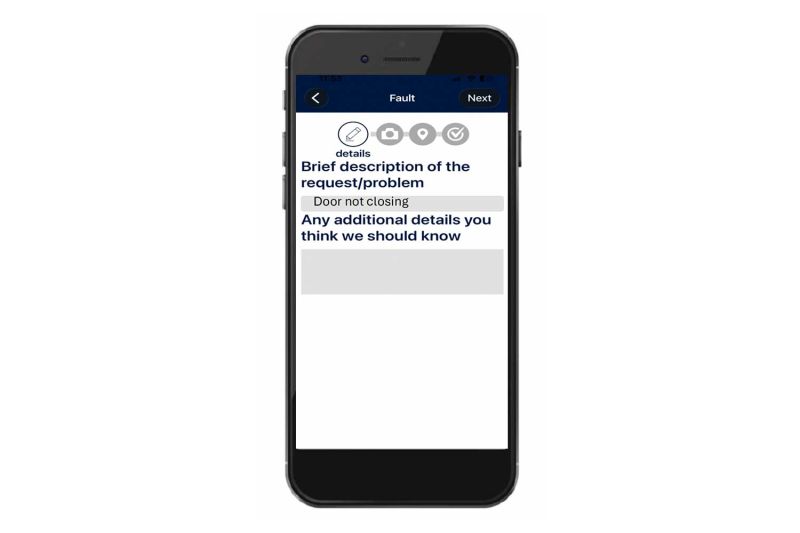
The Brief description will be populated based on categories selected.
In the second box, add as much detail as you can to assist us in understanding the issue and planning next steps. This could also include names and contact details for anyone else you want to be notified about the ticket, including an on-site contact for operatives to report to on arrival.
Text can be typed or dictated.
Tap Next when ready
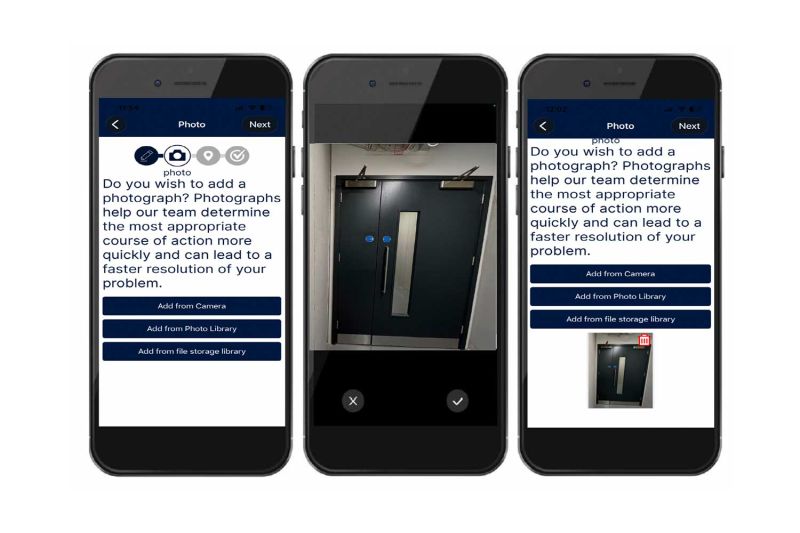
Select an option to add photographs directly from your camera, or from a saved location.
These can be re-taken and/or deleted, if necessary.
Tap Next when ready
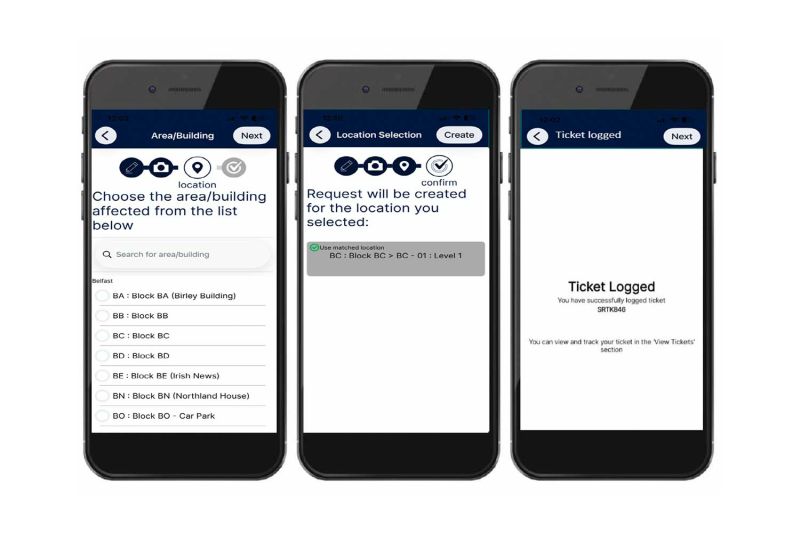
Choose the location from the list or by searching using a keyword.
Confirm the location is correct and tap Create to log the Ticket.
After logging, tap Next to return to the homescreen.
Select the View Tickets icon to check the status of existing Tickets.
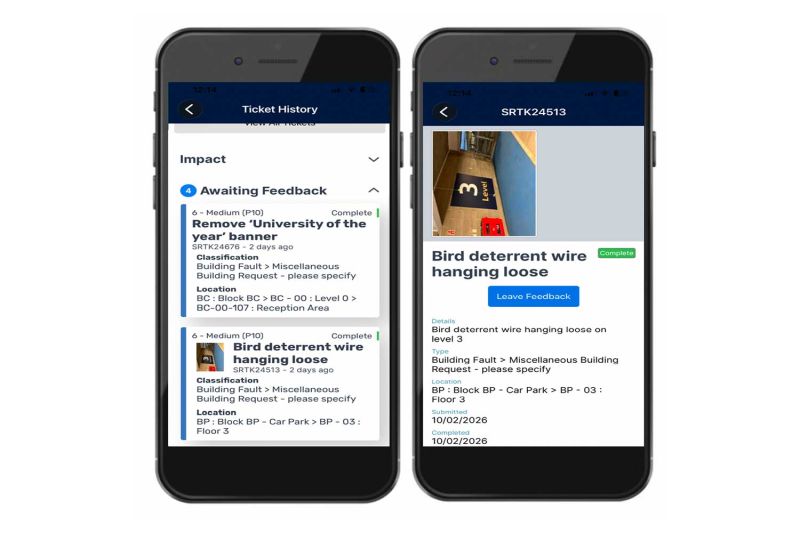
Tickets are ordered chronologically.
The status of each is indicated.
Tap on a Ticket to see details, add comment or photos, or cancel (if still in review).
For additional support please contact estatesservices@ulster.ac.uk